
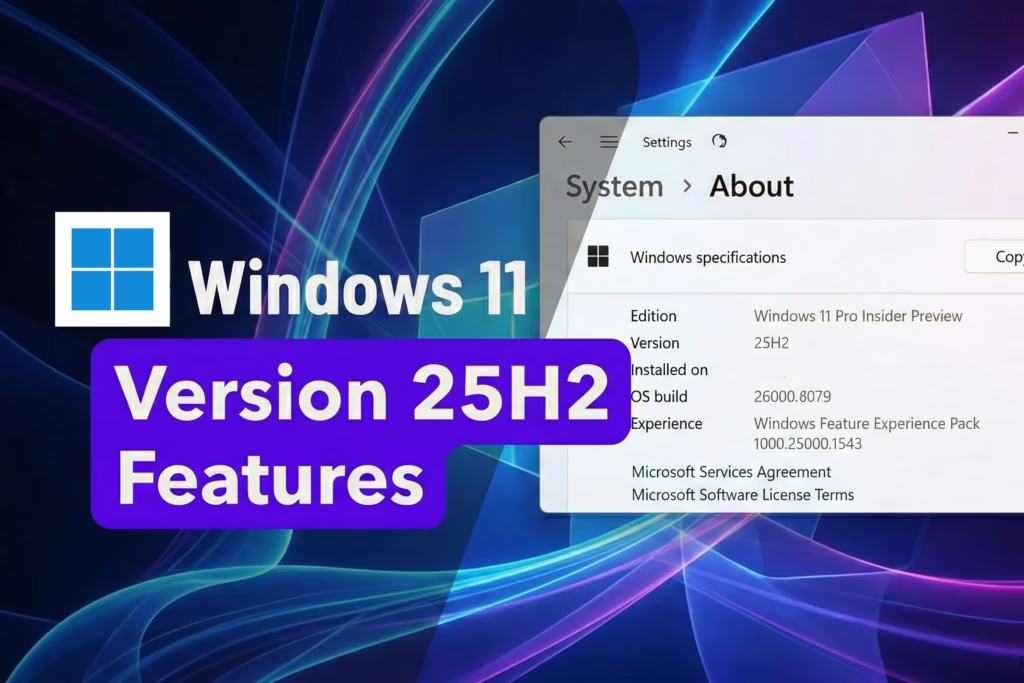
Windows 11 Version 25H2: Deep Dive into the New Features (Build 26200.7462)
If you’ve recently checked your Windows specifications and noticed Version 25H2 (OS Build 26200.7462), you are running the latest major feature update for Windows 11. Released broadly in late 2025, this update—often delivered as a compact “enablement package”—refines the user experience with meaningful tweaks rather than just cosmetic overhauls.
Here is a point-wise breakdown of the new features and improvements you can expect in this latest version.
1. File Explorer Overhaul
Microsoft continues to polish the File Explorer, finally addressing long-standing consistency issues.
-
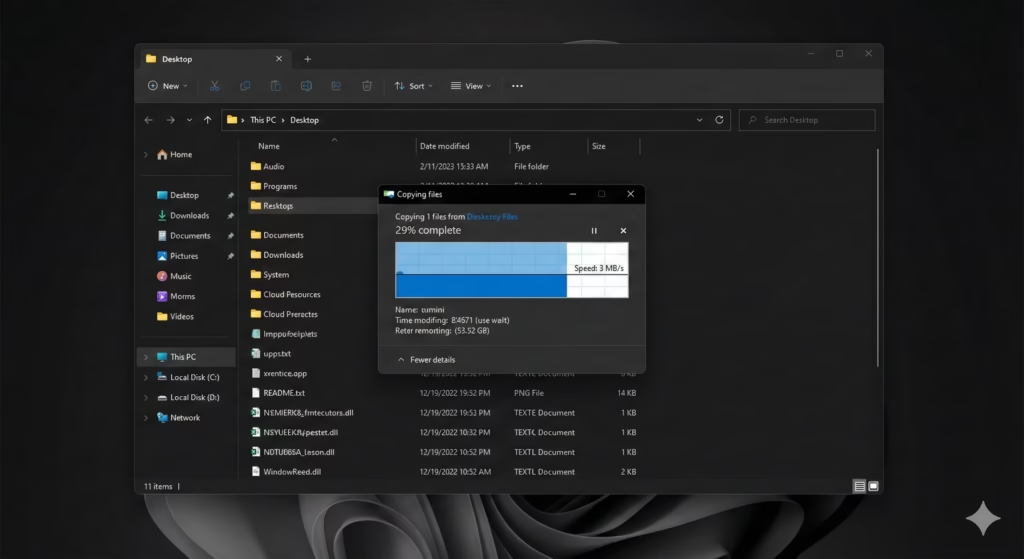
True Dark Mode Support: One of the most requested changes is finally here. Legacy dialogs (like file copy, move, and delete progress bars) now fully support Dark Mode, eliminating the jarring bright white pop-ups when using a dark theme.
-
Simplified Context Menu: The right-click menu has been decluttered further. Common actions like Share, Copy, and Move are better organized, and the “Open” command icon bug has been fixed.
-
AI Actions: You can now perform quick AI edits directly from the explorer, such as blurring backgrounds or removing objects from images without opening a separate editor.
2. Enhanced Settings & Customization
The migration from the old Control Panel to the modern Settings app continues, making the system easier to manage.
-
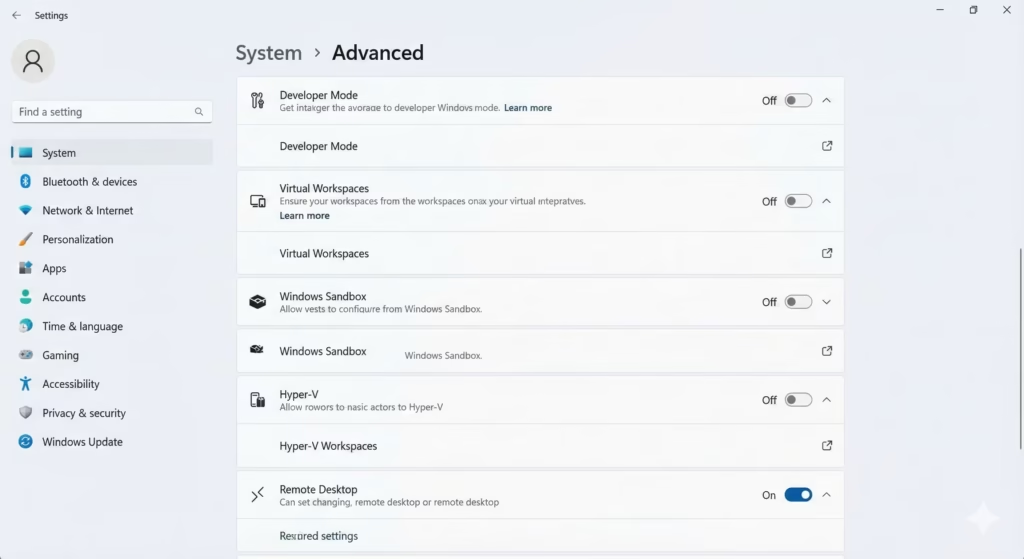
Redesigned “Advanced” Settings: The “For Developers” page has been replaced by a new Advanced Settings page. This hub now consolidates developer tools, virtual machine management, and other high-level system configurations in one logical place.
-
Virtual Workspaces: A new dedicated section allows you to easily manage virtual environments like Windows Sandbox and Hyper-V directly from Settings > System > Advanced.
-
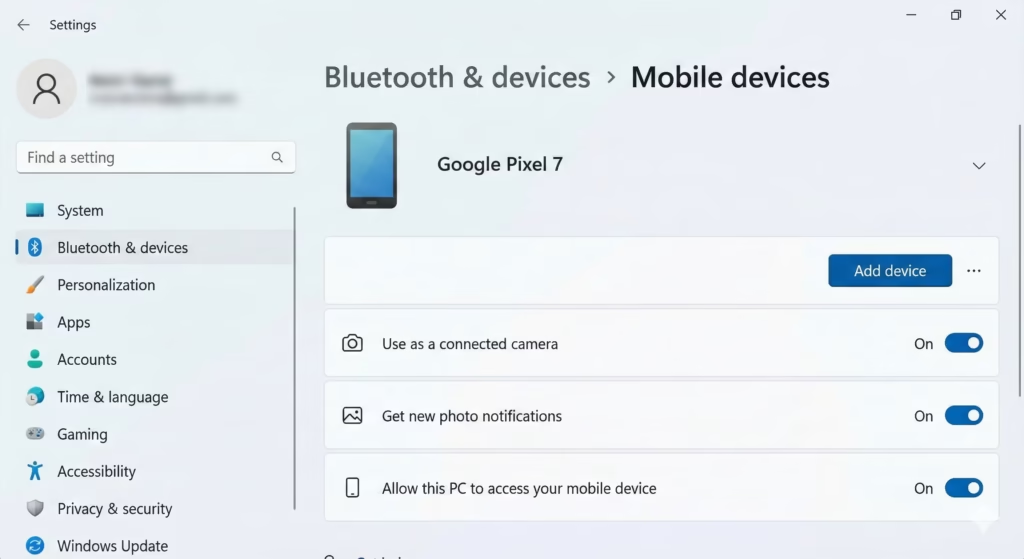
Mobile Devices Hub: A new settings page under Bluetooth & Devices > Mobile Devices lets you manage connected smartphones, including using your phone as a connected camera or accessing its files wirelessly.
-
Peripheral Controls: Legacy settings for “character repeat delay” (keyboard) and “cursor blink rate” have finally been moved from the Control Panel to the modern Accessibility settings.
3. Gaming & Performance
-
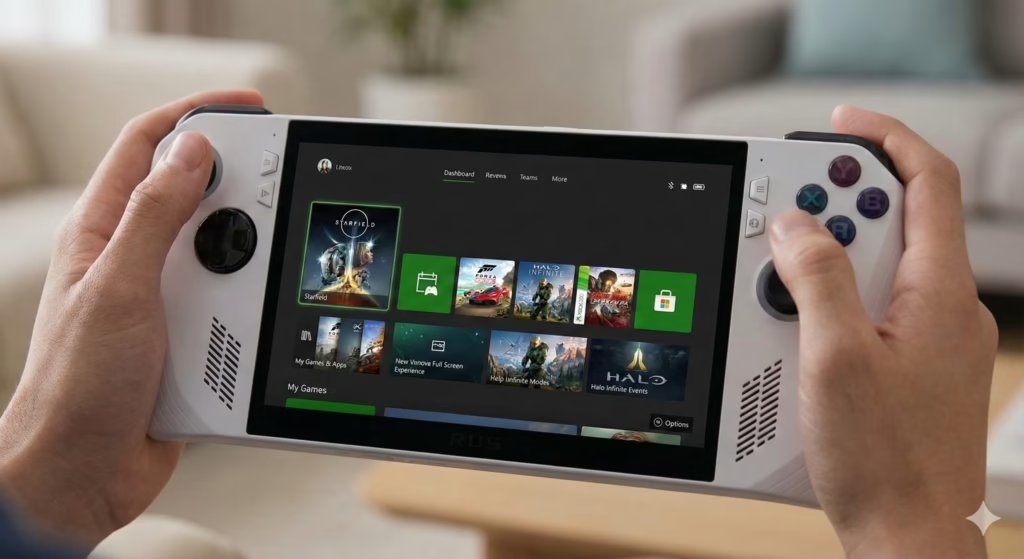
Xbox Full Screen Experience (FSE): Designed primarily for handheld Windows gaming devices (like the ROG Ally), this feature provides a console-like dashboard to launcher games, minimizing distractions and background tasks to boost performance.
-
Drag Tray Improvements: The “Drag Tray” (which appears when you drag a file to the taskbar) now supports sharing multiple files at once and allows direct sharing to apps like WhatsApp or Telegram. You also now have the option to disable this tray if you find it intrusive.
4. System Interface Tweaks
-
Search UI Alignment: A subtle but pleasing fix—the Windows Search window height now perfectly matches the height of the Start Menu, creating a cleaner visual symmetry.
-
Tactile Pen Feedback: If you use a stylus, new haptic feedback support provides physical vibrations when you interact with buttons or snap windows, mimicking the feel of real textures.
-
Hardware Indicators: You can now customize the screen position of hardware indicators (like the volume or brightness sliders), so they don’t cover up important content in the center of your screen.
5. Security & Recovery
-
Quick Machine Recovery (QMR): This feature has been enhanced to run automatic one-time scans. If it detects a boot issue or critical failure, it attempts to self-repair or guide you immediately to the best recovery option.
-
Enhanced Kernel Isolation: To protect against sophisticated attacks, deeper kernel isolation features are now enabled by default, leveraging virtualization-based security to lock down critical system processes.
Verdict: Windows 11 25H2 isn’t a reinvention of the wheel, but it is a “finishing” update. By fixing UI inconsistencies (like the dark mode dialogs) and adding quality-of-life features (like the new Advanced Settings), it makes the OS feel more mature and cohesive.