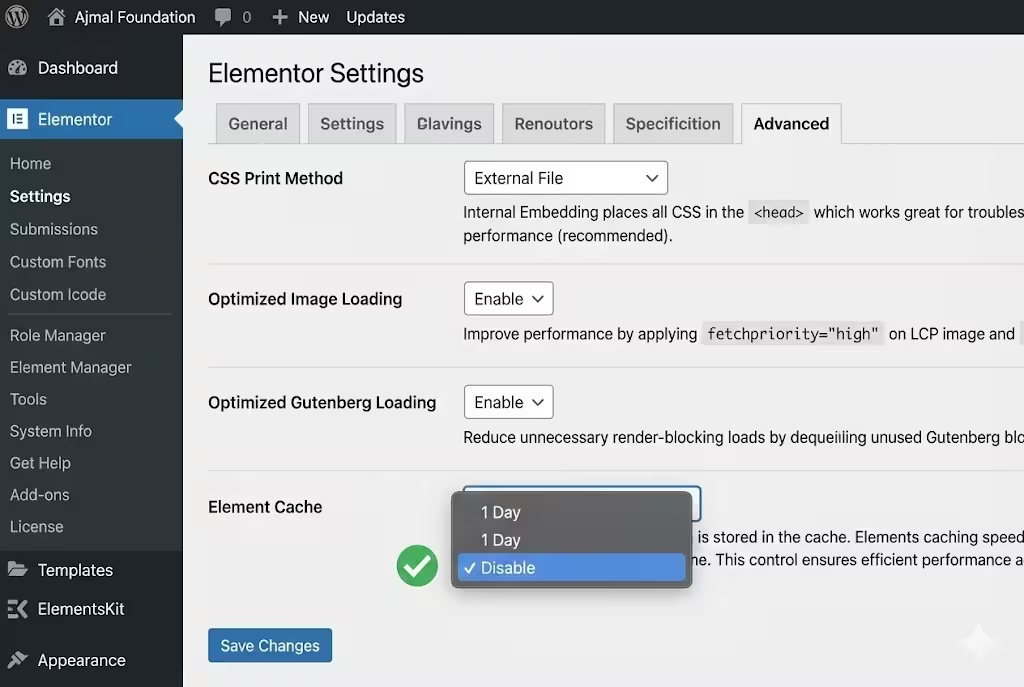
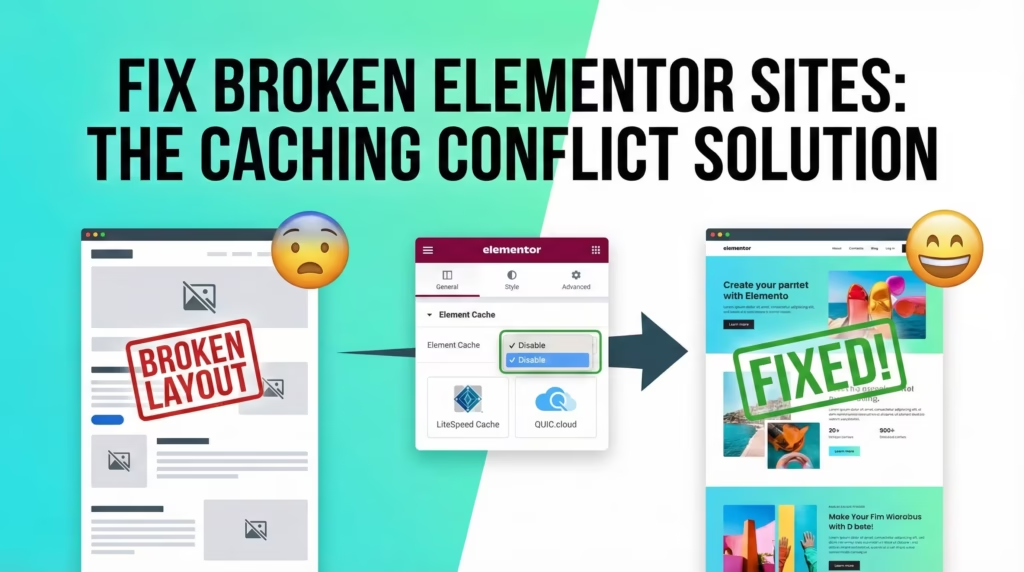
Based on your setup (using LiteSpeed Cache + QUIC.cloud) and the issues you are facing (site structure breaking), you should change “Element Cache” to Disable.
Here is the explanation of why this is happening and why you should change it.
1. The Conflict (Why your site breaks)
You are currently running multiple layers of caching:
Elementor’s Internal Cache: (The setting in your screenshot).
LiteSpeed Cache: Caches the full HTML page.
QUIC.cloud: Caches the content at the CDN level.
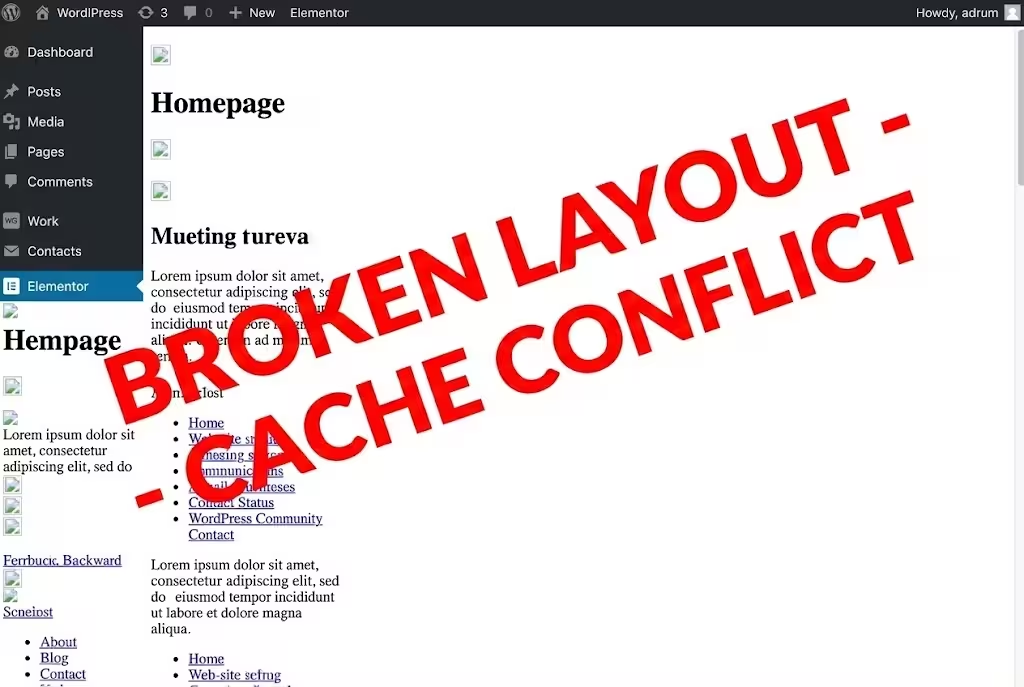
When your site “breaks,” it is usually because the CSS file links in the HTML (cached by LiteSpeed/CDN) do not match the actual CSS files generated by Elementor.
If Elementor’s “Element Cache” expires after 1 Day and regenerates, but LiteSpeed serves an older HTML page that points to the old cache data, the browser cannot find the styles, and your site looks like a broken skeleton.
2. The Solution
Since you are already using LiteSpeed Cache, which is a much more powerful and efficient caching engine, you do not need Elementor’s internal element caching as much.
Recommended Settings:
Element Cache: Change to Disable.
Why: Let LiteSpeed handle the caching. This prevents the “mismatch” between Elementor and LiteSpeed.
CSS Print Method (Top of your screenshot): Keep as “External File” for now.
Note: If you disable the Element Cache and the site still breaks occasionally, switch this to “Internal Embedding”. This puts the CSS directly in the header, making it impossible for the layout to “break” from missing files, though it is slightly less performant for “PageSpeed” scores.
3. Immediate Next Steps
Change Element Cache to Disable in the dropdown shown in your image.
Click Save Changes.
Go to the top toolbar, hover over the LiteSpeed diamond icon, and click Purge All.
Go to Elementor > Tools and click Regenerate Files & Data one last time to ensure a clean slate.
This should stop the recurring layout breakage while maintaining good performance via LiteSpeed.
4. Bonus Tip
Since you are using LiteSpeed + QUIC.cloud, here is one final “Bonus Tip” based on your screenshot:
Watch out for “Lazy Load Background Images”
Current setting: Enabled (in your screenshot).
Potential issue: LiteSpeed Cache also has a very aggressive Lazy Load feature. If both Elementor and LiteSpeed try to lazy-load the same background image, you might sometimes see images “blink,” disappear, or fail to load on mobile.
Recommendation: If you ever notice background images acting weird, try switching this setting to Disable and let LiteSpeed handle the lazy loading alone.