
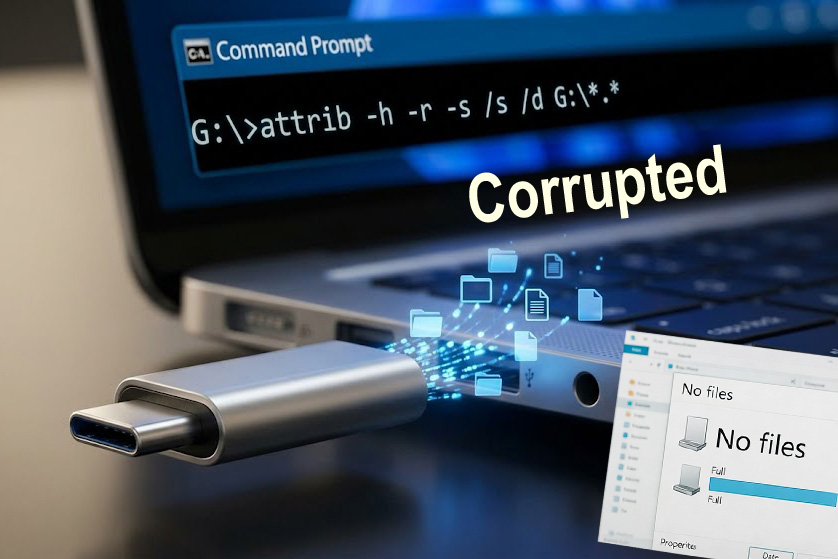
Have you ever plugged your USB flash drive into your PC, only to discover that all your important files and folders have vanished? It is a common panic moment, especially when you check the drive’s properties and see that the storage space is still being used.
Most of the time, your files aren’t actually deleted. They have simply been hidden, often as a result of a shortcut virus or a minor system glitch. Fortunately, you don’t need any expensive data recovery software to fix this. You can restore everything in just a few seconds using a built-in Windows tool.
Here is a quick, step-by-step guide to unhiding your files using the Command Prompt.

1. Open Command Prompt
Next, you need to open the Windows Command Prompt to enter the recovery command.
Press the Win + R keys on your keyboard simultaneously to open the Run dialogue box.
Type
cmdinto the box.Press Enter or click OK. A black terminal window will appear.
2. Run the Attrib Command
Now, it is time to execute the command that will strip away the hidden attributes from your data. Carefully type the following exact command into the Command Prompt:
attrib -h -r -s /s /d G:\*.*
(Crucial Note: In the command above, replace the letter G with the actual drive letter you noted in Step 1!)
Once you have typed it correctly, press Enter. The process might take a few seconds depending on how much data is on the drive. Once the blinking cursor returns to a new line, the process is complete. Open your pendrive in File Explorer, and your files should be visible again!
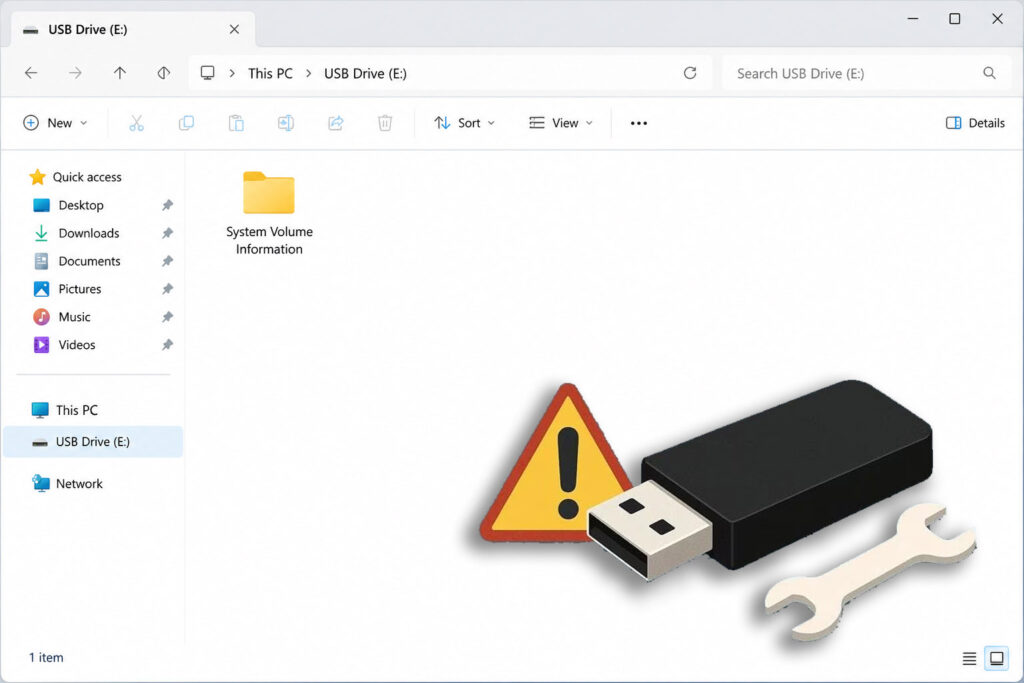
What Does This Command Actually Do?
If you are curious about what happens under the hood when you run that string of text, here is a quick breakdown of the attrib parameters:
-h: Clears the Hidden file attribute.
-r: Clears the Read-only file attribute.
-s: Clears the System file attribute (viruses often disguise your files as essential system files so you can’t see them).
/s: Applies the command to all matching files in the current folder and all of its subfolders.
/d: Applies the command to the folders themselves, not just the files inside them.
*.*: A wildcard instruction telling the system to apply this to files of any name and any extension.